How to Create a Real Estate Brochure: Step-by-Step Guide for Agents
To create a real estate brochure, choose the format first (flyer, single-page, trifold or booklet), gather the listing details and photographs, write a description that leads with what is unusual about the property, add your branding and a QR code, then check the print resolution before you send it anywhere. Template-driven brochure tools can cut this down considerably, because the layout is already prepared.
- What do you need before you start?
- Step 1: Choose the format before the design
- Step 2: Gather the listing details
- Step 3: Choose and order your photographs
- Step 4: Write the description
- Step 5: Add your branding and a QR code
- Step 6: Check it will print properly
- By hand, or from a template?
- Common questions
What do you need before you start?
Four things. Collect them first and the rest is assembly rather than decision-making.
- Photographs — the full set, at original size, straight from the camera or the photographer's download. Not the versions that came through a messaging app.
- The numbers — price, bedrooms, bathrooms, floor area, lot size, year built, and anything else your local board expects on marketing material.
- What is unusual about it — three or four specifics. Not "spacious and bright"; "a south-facing terrace off the kitchen" or "a six-stall barn and fenced paddocks".
- Your own details — name, title, brokerage, phone, email, and any licence or registration details your local regulator or real estate board requires on advertising. Check the advertising rules that apply in your jurisdiction rather than copying another agent’s brochure.
Step 1: Choose the format before the design
Pick the format by how the brochure gets handed over. That single decision settles how much you can say and how much it costs to print.
| Situation | Format | Why |
|---|---|---|
| Open house take-away | Flyer | Cheap enough to print fifty and not mind what happens to them |
| Standard listing | Single-page brochure | The whole listing on one sheet, front and back if needed |
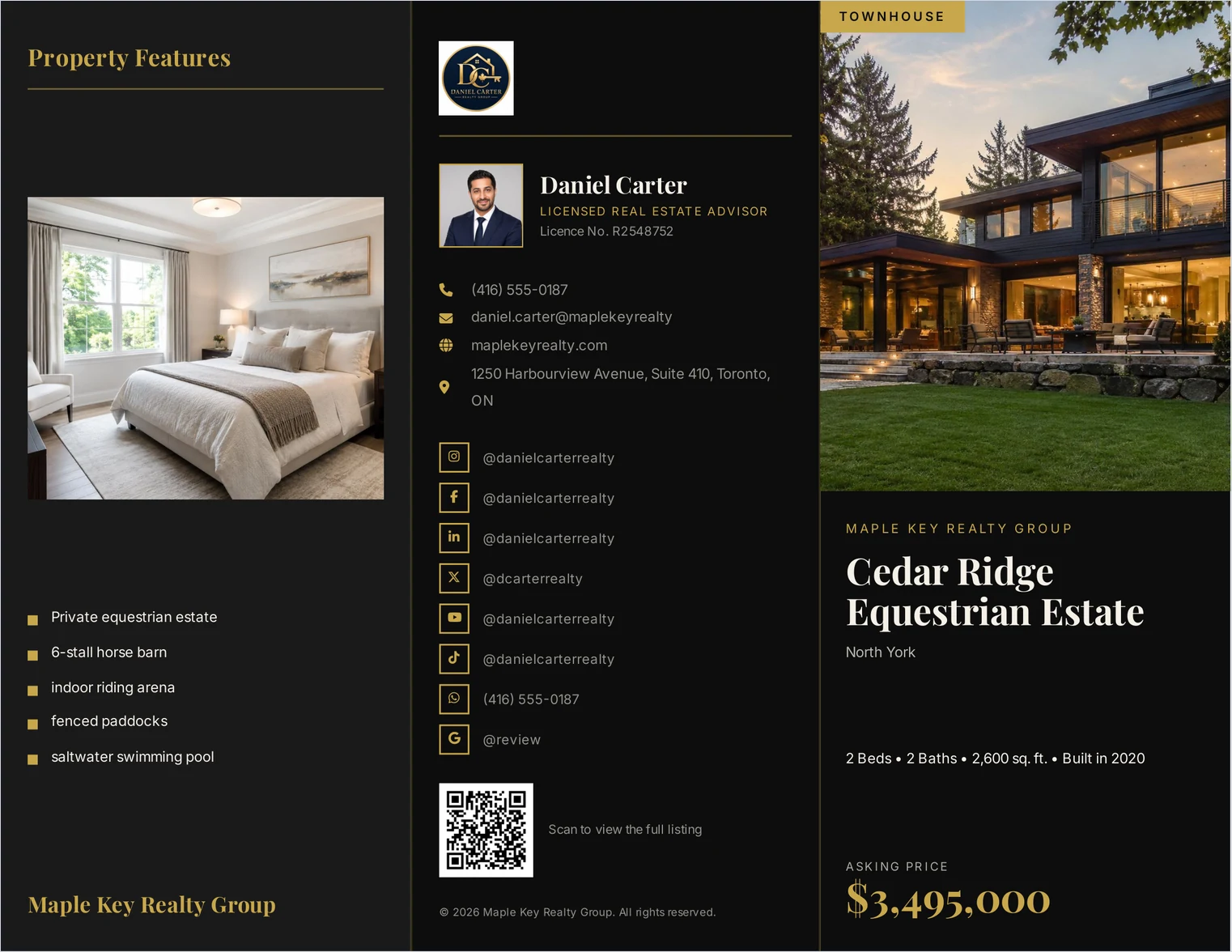
| Posted or handed over in person | Trifold | Folds to fit an envelope and a jacket pocket, opens to six faces |
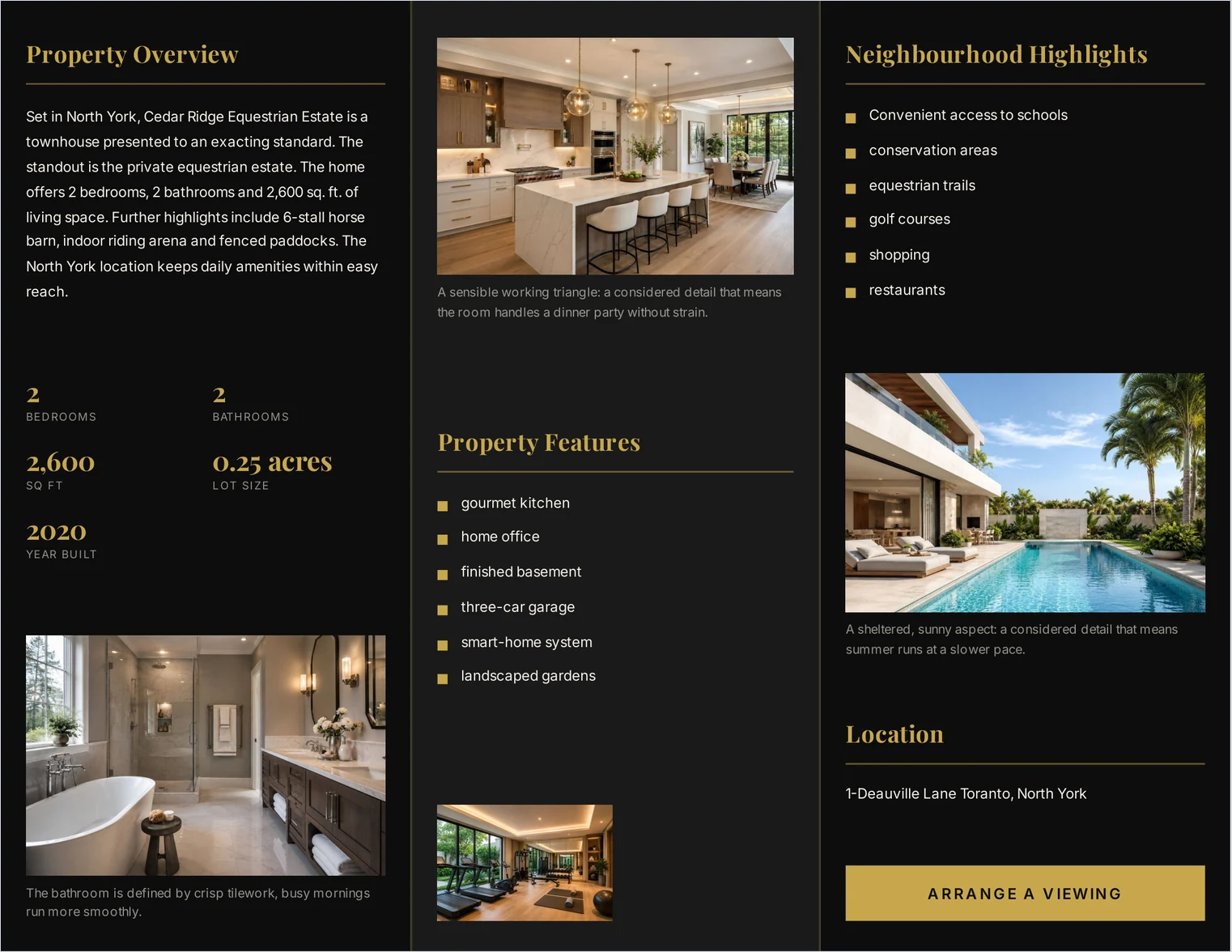
| Large home or estate | Booklet | Room for photography to carry the argument |
| Emailed follow-up | PDF of any of the above | Keep the file reasonably small so it downloads quickly and opens easily on a phone |
If you are unsure, the single-page brochure is the safest default: it prints on ordinary paper, scans well, and emails without complaint. You can browse real estate brochure templates by format to see how each one uses the space.
Step 2: Gather the listing details
Write them out before you open any design tool. Make the key facts easy to scan — price, address or location, bedrooms, bathrooms, floor area, lot size and year built where applicable — rather than burying them in prose.
Two fields are skipped more often than the rest: lot size and year built. Both are routinely asked about, and a blank where a number should be invites the question anyway — so it is usually less work to fill them in.
Step 3: Choose and order your photographs
The order is the argument. The cover photograph decides whether the brochure gets read; the rest should walk a buyer through the house the way you would walk them through it in person.
- Cover — the exterior, or the single most striking interior if the outside is unremarkable
- Then — the main living space, the kitchen, the primary bedroom and bathroom, in that order
- Then — outdoor space, and anything unusual: the barn, the pool, the studio, the view
- Last — secondary bedrooms and utility spaces, if there is room for them at all
For many residential listings, eight to twelve well-chosen photographs balance variety against the space available on the page. Larger properties and booklet formats can carry more; past a point, each photograph on a printed sheet simply becomes too small to show anything.
Step 4: Write the description
Lead with the specific thing. A buyer reading six brochures cannot tell yours apart if it opens with "this stunning family home offers spacious accommodation" — every one of the six says that.
A workable structure: one sentence placing the property, one on what makes it unusual, two or three on the rooms that matter, one on the location. Around 80 to 140 words. On a brochure you are competing with the photographs for attention, and the photographs should win.
Step 5: Add your branding and a QR code
Your photograph, name, brokerage and contact details belong on every brochure, in the same place each time — a buyer comparing four of your listings should recognise them as yours.
A QR code is the one addition that genuinely earns its space on printed material. It turns a sheet of paper someone took from an open house into a link back to the full listing, two weeks later, when they have forgotten your name. Point it at the listing page, not your homepage.
Step 6: Check it will print properly
This is where most generated brochures fail, and it is worth understanding because the failure is invisible on screen.
Resolution. Print shops ask for 300 DPI. An A4 page is 8.27 inches wide, so a photograph printed across the full width needs 8.27 × 300 = 2,481 pixels. A photograph straight off any recent phone is around 4,032 pixels wide, which is comfortably enough. The problem is what happens in between. Messaging apps compress photographs and can reduce them well below what print needs, and the result looks perfectly sharp on your screen while being visibly soft on paper. Wherever possible use the original file from the photographer rather than a copy pulled out of a chat.
Fonts. Open the finished PDF and try to select a line of text. Ideally it stays selectable and searchable. Some PDF-generation methods convert text into outlines or images instead, which still prints, but makes searching, copying and screen-reader access harder. It is worth checking once for whichever tool you use.
ListifyPDF test. In one of our own tests, a single-page layout produced a cover photograph measuring about 312 DPI, and a separate sixteen-photograph brochure produced a PDF of about 1.2 MB. Each photograph is sized to the space it occupies rather than embedded at full resolution and scaled down by the page, which is what keeps the file small. Results vary with the template and the source images.
By hand, or from a template?
Knowing how to create a real estate brochure is one thing; doing it for every listing is another. Building each one by hand gives you control over every element, but repeating the layout, image placement and formatting for each property adds up. A template-driven brochure maker handles most of that layout work for you.
The alternative is to let the layout be decided in advance and supply only the listing. That is the trade a real estate brochure maker makes: less control over where each element sits, in exchange for not having to place any of them. With ListifyPDF you enter the listing details, upload the photographs, choose a template and generate the brochure as a finished PDF.
Common questions
- What should a real estate brochure include?
- Price, address, bedrooms, bathrooms, floor area, lot size, year built, eight to twelve photographs, a short description, a feature list, your contact details and your licence number where required. There is a fuller version in the real estate brochure checklist.
- What size should a real estate brochure be?
- A4 or US Letter for flyers and single-page brochures, depending on where you are. Trifolds are usually printed on an 11 × 8.5 inch sheet folded into three panels of about 3.67 inches each. Booklets are A4 or Letter, printed double-sided.
- How many photographs should a property brochure have?
- Eight to twelve for most listings. A large home or an estate can carry sixteen. Past that, each photograph on a printed page becomes too small to show anything.
- Do I need design software to make a property brochure?
- No. You can lay one out in a design tool if you want control over every element, or use a template-driven tool where you supply the listing and the layout is already decided. The second is faster; the first is more flexible.
- Why does my brochure look blurry when printed but fine on screen?
- Almost always resolution. A screen shows about 100 pixels per inch and print needs 300, so a photograph can look perfect on a laptop and soft on paper. Check the pixel width of the original: a full-page photograph needs about 2,500 pixels across.
- Should a brochure be printed or digital?
- Both, from the same file. Print for open houses and viewings; send the PDF as the follow-up. A QR code on the printed version connects the two.